A guide to every screen in the True2Size admin: what each setting does, what it starts on, and when you would change it. It follows the order you work in: create a size chart, map your products, then shape the widget.
Start here
Overview
True2Size adds a "Find your size" button to your product pages. A shopper clicks it, answers a few quick questions, and gets a size recommendation with the reasoning behind it, based on your own size chart. The same widget can also show the size chart itself, on its own or next to the recommender.
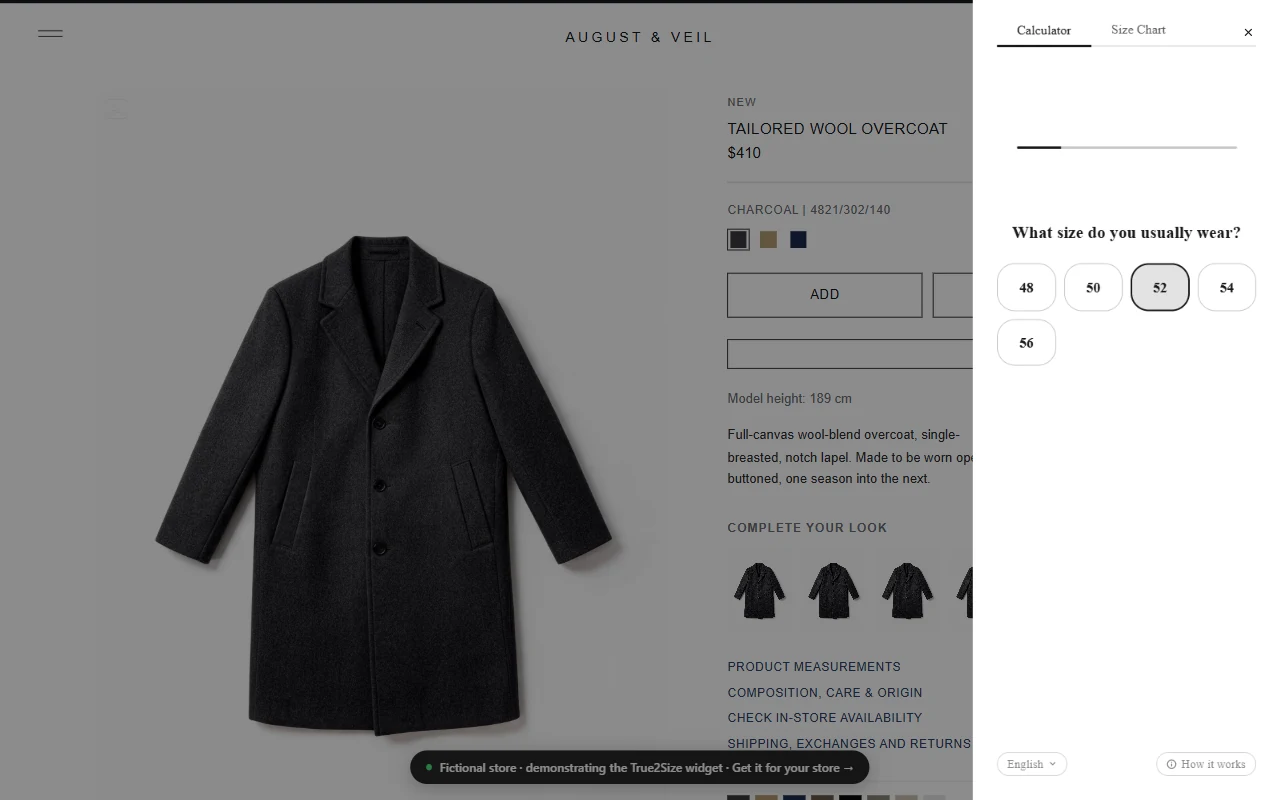
The widget open on a product page. How it opens (panel, popup, drawer and more) is your choice.
The admin app has eight pages:
Dashboard
Your numbers at a glance (recommendations served, products mapped, size charts, shoppers with saved profiles), the three setup steps, and a warning when a product's size options do not match its size chart.
Analytics
How shoppers use the widget, and a list of shoppers who saved their size.
Size Charts
Your measurement tables and everything shown around them.
Products
Which size chart belongs to which product.
Widget Settings
How the widget looks and behaves. The largest part of this guide.
Translation
Which languages your store's widget offers.
Billing
Your plan. The core product is free; two AI features are on the Pro plan.
Support
Contact us, report a bug, or request a feature.
Start here
Getting started
Three things need to exist before a shopper sees a recommendation. The Dashboard tracks them for you.
Create a size chart. One row per size, with the measurements for each. Start from a template, paste a table from a spreadsheet, or (on Pro) upload a photo of an existing chart. See Size charts.
Map your products to it. Tell True2Size which chart describes which product, one by one or automatically for a whole collection, tag or product type. See Products.
Turn on True2Size in your theme. In the Shopify theme editor, open App embeds and switch on "True2Size (auto-inject)". That one switch puts the button on every mapped product page. Nothing needs to be pasted in: your integration key is filled in automatically.
App embed or block? The app embed is the recommended way and needs no placement work. If you want to drag the button to an exact spot in your product template yourself, add the True2Size block to the template instead. Use one or the other, not both: with both on, the widget keeps a single button, but the setup is harder to reason about. Manual placement (see Trigger button) only works with the block.
From then on, everything about the widget is changed in Widget Settings and applies as soon as you save. You never need to touch the theme again.
Start here
What shoppers see
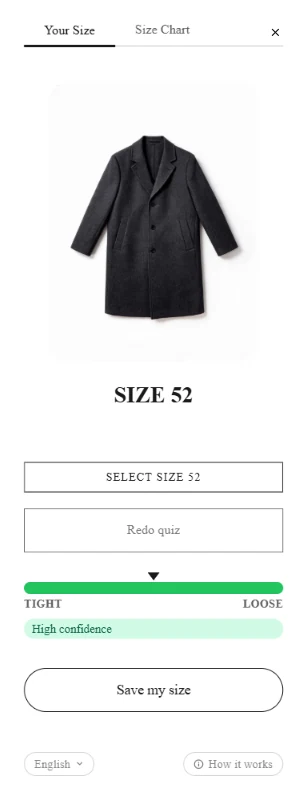
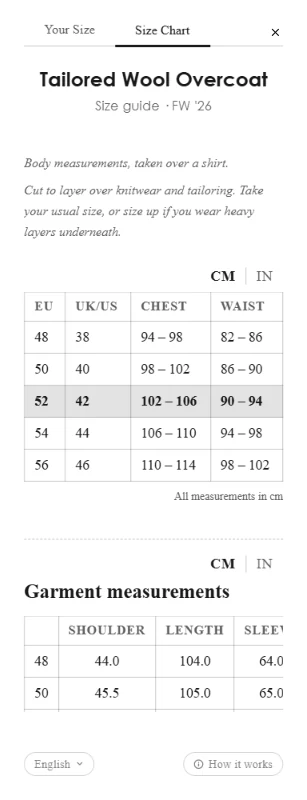
It helps to know the three screens before you configure them. A shopper opens the widget, answers the questions, and lands on the result. The size chart sits one tab away.
Questions
Result
Size chart
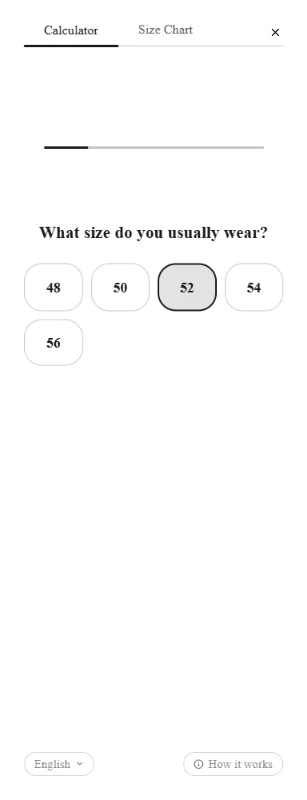
The three screens: a question, the result, and the size chart tab.
What happens along the way
The questions
Two to four short questions, depending on the question flow you choose. Each has its own screen with a progress indicator.
The result
The recommended size, how confident the recommendation is, a one-sentence explanation, and a button that selects that size on your product page (or adds it to the cart, if you choose that).
Remembered within a visit
Once a shopper has answered, the widget remembers the answers in that browser for the rest of the day. On the next product they open, a click on the button shows their size at once, without the questions.
Save my size
To be remembered on later visits, a shopper can save their size with their email address, a one-time code sent to it, and a consent checkbox. Returning to your store, they are recognised and can manage or delete their saved details from the widget.
Size charts & products
Size charts
Size Charts
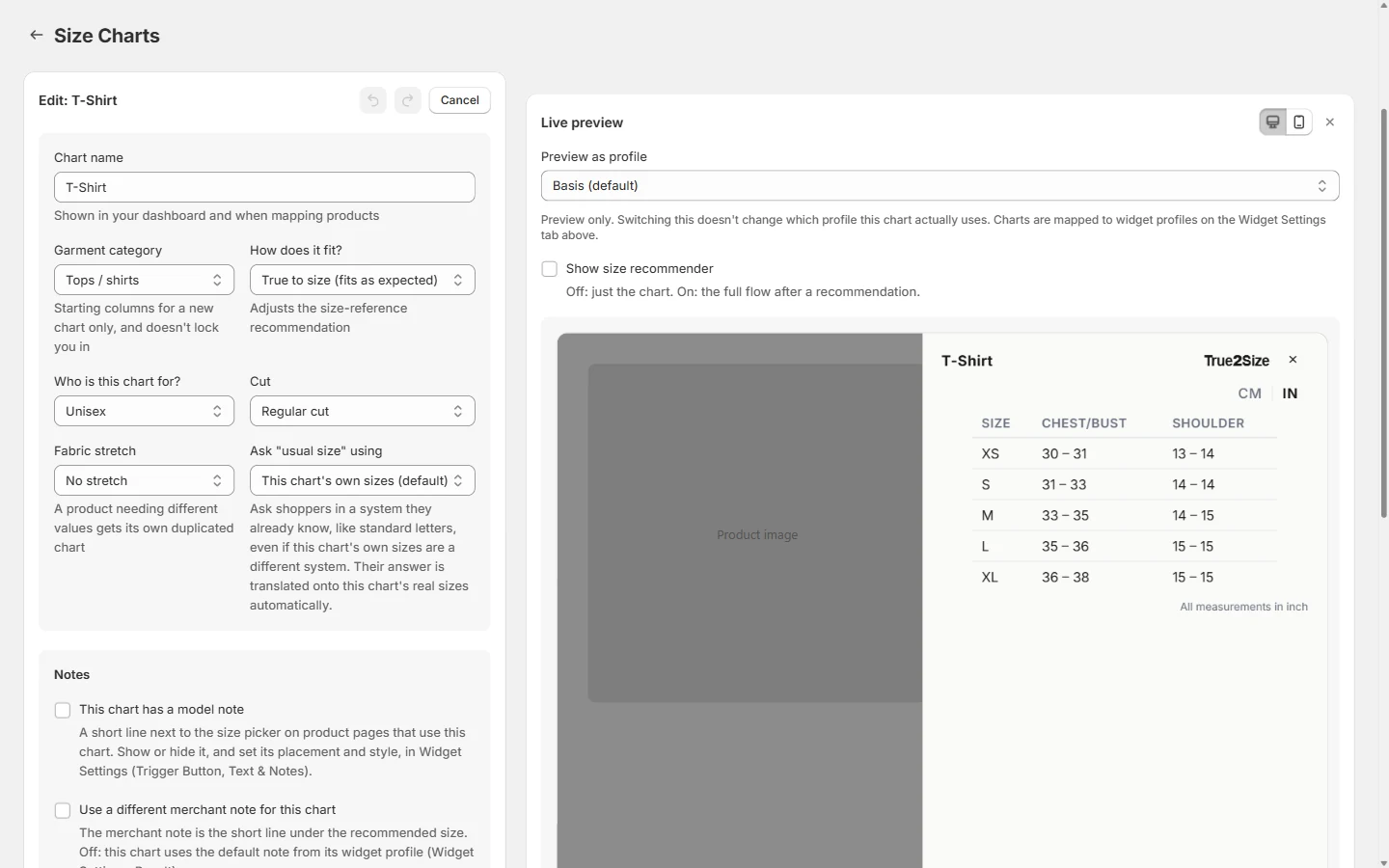
A size chart is a measurement table: one row per size, one column per measurement. Every recommendation is made against a chart, so this is the part worth getting right first. A chart page can hold much more than the table: headings, text, images, a fit scale, extra tables and collapsible panels.
The size chart editor. The live preview on the right is the real widget showing this chart.
Starting a new chart
Template or blank
Choose a blank chart or one of nine templates: T-Shirt, Long Sleeve Shirt, Hoody, Button-up Shirt, Shorts, Pants, Dress, Skirt, Shoes. A template comes with sensible columns and sample values, so you edit real numbers instead of starting from an empty table.
Import
The Import button on the chart list brings in a chart file exported from True2Size, for example from another store. See Import & export.
Chart details
The fields at the top of the editor. They describe the garment and steer the recommendation.
Chart name
Shown in the admin and wherever you map a product. Must be unique in your store.
Garment categoryDefault: from the template
Tops, bottoms, dresses, outerwear or footwear. It decides the starting columns of a new chart and does not lock you in. On a footwear chart the question reads "What shoe size do you usually wear?".
How does it fit?Default: True to size
True to sizeNo adjustment.
Runs smallShoppers are steered one step up, and the product shows a "Runs small" badge in the admin.
Runs bigShoppers are steered one step down, with a "Runs big" badge.
Who is this chart for?Default: Unisex
Unisex, Men's or Women's. With "Default gender answer" on Auto (see Questions), a women's chart pre-selects Women's in the gender question and other charts pre-select Men's.
Cut and Fabric stretchDefault: Regular cut, No stretch
Cut is regular, slim, relaxed or oversized. Stretch is none, low, medium or high. Both belong to the chart, not the product. A product that needs different values gets its own chart: duplicate the chart and change them there.
Size question
How shoppers answer "What size do you usually wear?". Three short steps read from your own size table, with a summary line at the top. Until your table has sizes, it asks you to add your size chart first.
1. Your product's sizesDefault: Shoppers can answer in them
The first column of your size table, shown with its values. These must match the size options on your product pages (a shoe sold in 37 to 49 needs a table whose first column says 37 to 49): they are what gets recommended and selected. One tick decides whether shoppers can answer in them too. Untick it to ask, for example, an Italian-sized shirt only in XS to XL.
2. Other size columns in your table shoppers can answer inDefault: None
A tick for every other size column your table has, such as UK and USA beside EU, with its values shown. Ticking more than one way to answer gives the question a small switch above the sizes (for example EU | UK | USA), and you pick which one it starts on. Answers are looked up in your table, so they are exact: a shopper who picks UK 6 is recommended the size on that row, and the result text repeats it as they picked it ("You usually wear UK 6"). The step warns when a ticked column has sizes without a value. Other size columns come in when you paste or import a table that has them, or with "+ Add size column" in the size table.
3. Also accept a common size system that's not in your tableDefault: None
Optional. Shoppers can also answer in a common size list that isn't in your table, for example UK clothing sizes on an Italian-sized shirt. Their answer is scaled onto your product's sizes by its position in the range, so it is approximate. For exact answers, add the system to your table as a size column and tick it in step 2.
A shopper's choice of system is remembered on the next product. Charts made before this section existed keep working exactly as before: opening one shows its current setup here.
Notes
Two short lines of text that belong to this chart.
Model note
Tick "This chart has a model note" and write a line such as "Mike is 6'2" and 77kg, wearing size L." It appears next to the trigger button on product pages that use this chart. Whether it is shown at all, and its position and style, are set once per profile under Trigger button. A chart without a note shows nothing.
Merchant note for this chart
The merchant note is the short line under the recommended size, for example "This style runs slim, so size up if between sizes." Each profile has a default note (see Result). Tick "Use a different merchant note for this chart" to replace it for this chart's products only.
The main table
Rows are sizes. Columns are the measurements you track.
Size column
The first column holds your size names. Name it (Size, EU, IT and so on) and tag it with a sizing system. The tag is what lets a chart row "L" match a product variant called "Large". You can add more size columns (UK and USA beside EU, for example) with "+ Add size column": pick the system (EU, UK or US shoe sizes, letters, EU, UK, US or IT clothing sizes, or your own name) and the column is added already named. A paste or import that has such columns brings them in too. In the table they sit under "Size columns", the measurements under "Measurements". Shoppers see them in the table, right after the first size column, and they are also used to match the recommended size to your product's size options. Any text works in them, so a cell can read W 9.5 / M 8.
Matching your product's size names
Your size options in Shopify do not have to be named exactly like the chart. Names that combine or decorate sizes are understood: UK 11.5 | EU 30, EU 42 / UK 8, 42 (UK 8), Size 42, 42 EU, M (38-40), decimal commas and halves like 9 1/2. The more size columns your chart has, the more of a combined name can be checked. When two options would fit equally well (S/M and M/L for a recommended M), the widget picks neither rather than guess.
Measurement columns
Each column has a label, a category (length, weight or shoe size), the unit you enter values in (cm, mm, in or ft'in for length; kg or lb for weight), and an optional "Also show as" unit. That second unit is what a shopper sees when they switch between metric and imperial. Two checkboxes per column: show one decimal instead of whole numbers, and show the unit in the column name. A callout number links a column to a number on your measurement diagram.
Cells
A single value (84) or a range (80-84), whichever your chart uses.
Rows and columns
Add, remove and drag to reorder both. "Set all units" switches every column between metric and imperial in one go. The table can also be transposed, so sizes run across the top.
Bringing in a table you already have
Paste
Copy the table in Excel, Google Sheets or similar and press Paste. This is the recommended route. If what you paste already matches your columns, the rows are added at once. Otherwise a short wizard opens.
Import CSV
Upload a .csv file. It goes through the same wizard.
Import from photo (Pro)
Upload a photo or screenshot of a size chart, crop it to the table, and the table is read out for you and passed to the same wizard to review. See Plans & billing.
The wizard
1. OrientationWhether sizes run down the rows or across the columns. It guesses, warns when unsure, and shows a preview.
2. Match columnsFirst, which column holds your size names. It is usually the first, but a table that starts with measurements and names the sizes later (Insole length, Width, EU, UK, USA) is recognised, and you can pick another. Then for each column: which measurement it is (or ignore it, or a custom field), whether it is a full value or the min or max half of a range, and its unit. Units in your headers, like "Chest (in)", or in the values, like "236mm", are picked up automatically, and columns headed EU, UK, US or USA become extra size columns.
3. ReviewShows exactly what will be created. A cell that cannot be read as a number blocks the import and is named by row and column.
Download template
Saves your chart's current columns as an empty CSV to fill in offline and import again.
Around the table
A chart page is a list of blocks you add, reorder by dragging, duplicate and remove. The main table is one of them.
Block types
HeaderA heading with an optional subheading, each with its own size and font.
TextFormatted text: bold, italic, underline, strikethrough, alignment, lists, a font or size for a selected run of text, and links. Select words and press the link button to link them to a page on your store (/pages/how-to-measure), another website, an email or a phone number. Links to other websites open in a new tab by default.
ImageAn uploaded image or an image link, with an optional caption. Good for a measurement diagram.
DividerA horizontal line: solid, dashed or dotted.
Fit scaleA "Runs small, True to size, Runs big" scale with a pointer. It follows the chart's "How does it fit?" setting on its own.
LayoutImages and text side by side in columns, for a diagram next to its explanation.
Collapsible / tabsNamed panels shown as an accordion or as tabs. Each panel holds its own blocks.
Second tableA free-form extra table, for garment measurements beside body measurements or a width table. Each column is either a unit that converts with the metric/imperial switch, or plain text.
Hide from storefront
Every block, the main table included, can be hidden without deleting it. A chart whose main table is hidden still works for recommendations.
Live preview
The real widget showing this chart, on a sample product page, for desktop and mobile. "Preview as profile" picks which widget profile's look to preview with, and "Show size recommender" switches between the chart alone and the full flow. Neither changes a saved setting.
On the chart list: View opens a read-only preview, Duplicate copies a chart as a starting point, and Export saves it as a file. Each chart shows the widget profile it uses; change that under Profile Mapping on the Widget Settings page. The editor has undo and redo, warns before you leave with unsaved changes, and keeps a draft if the page closes unexpectedly.
Size charts & products
Products
Products
This page links each product to the size chart that describes it. The link is what switches the widget on: a product without a size chart shows no button. That is deliberate, so accessories and one-size items never show a size button backed by the wrong chart.
Getting your catalogue in
New products
Appear on their own as you create them in Shopify.
Existing products
Your existing catalogue is brought in automatically the first time you open the page. "Add products" opens Shopify's product picker if you want to add specific ones yourself.
Mapping a product
Choose a chart in the Size chart column of any product row.
Size chart
Not yet mappedNo chart yet. The widget is not shown on this product.
Doesn't need a size chartFor accessories and one-size items. The widget is not shown, and the product leaves your to-do list.
A chartAny chart you created. The widget appears on the product page.
Several at once
Tick several products and choose "Assign a size chart" to map them together. The search box and the tabs (All, Mapped, Not yet mapped, Doesn't need a chart, Needs attention) help you work through a large catalogue.
Needs attention
Size options that do not match the chart
If a product's size options in Shopify do not match the sizes in its chart (the chart says XS to XL, the product says "Extra Small" to "Extra Large"), the product is flagged here and on the Dashboard, with the sizes that could not be matched. Tagging the chart's size column with the right sizing system usually resolves it, because the widget then knows that "L" and "Large" are the same size. Combined names such as "UK 11.5 | EU 30" are not flagged when the chart has matching size columns. An unmatched size means "Select size" cannot pick that option for the shopper.
Size charts & products
Automatic mapping
Products›Automatic mapping
Instead of mapping products one by one, map a whole group and keep it mapped. A rule says: every product in this collection, with this tag, or of this product type uses this size chart.
New rule
Map products by
Collection, Tag or Product type. Pick one, then pick the chart.
Keep mapping new productsDefault: On
With this on, a product you add to the collection later (or give the tag or type) is mapped automatically within seconds. With it off, the rule maps the products that are in the group right now and stops there.
Current rules
The second tab of the same popup lists every rule, with its chart and how many products it covers.
Pause and Resume
A paused rule maps nothing new. Products it already mapped keep their chart.
Change chart
Points the rule at a different chart. You choose which products move: only the ones this rule mapped, or every product currently in the group.
Delete
Removes the rule. Products it mapped keep their chart.
Your own choices win. A product you mapped by hand keeps its chart when it lands in a rule's group. It shows a notice with two buttons instead: use the rule's chart, or keep yours. Products mapped by a rule carry an "Auto" badge so you can tell the two apart.
Widget settings
Widget profiles
Widget Settings
A profile is one complete set of every widget setting described below. Every store starts with one profile, marked Default, and every size chart uses it unless you say otherwise.
You need a second profile only when part of your catalogue should look or behave differently: a sub-brand with its own colors, or footwear that asks different questions. Create the profile, then assign size charts to it under Profile Mapping on the same page. A product follows its chart, and the chart follows its profile.
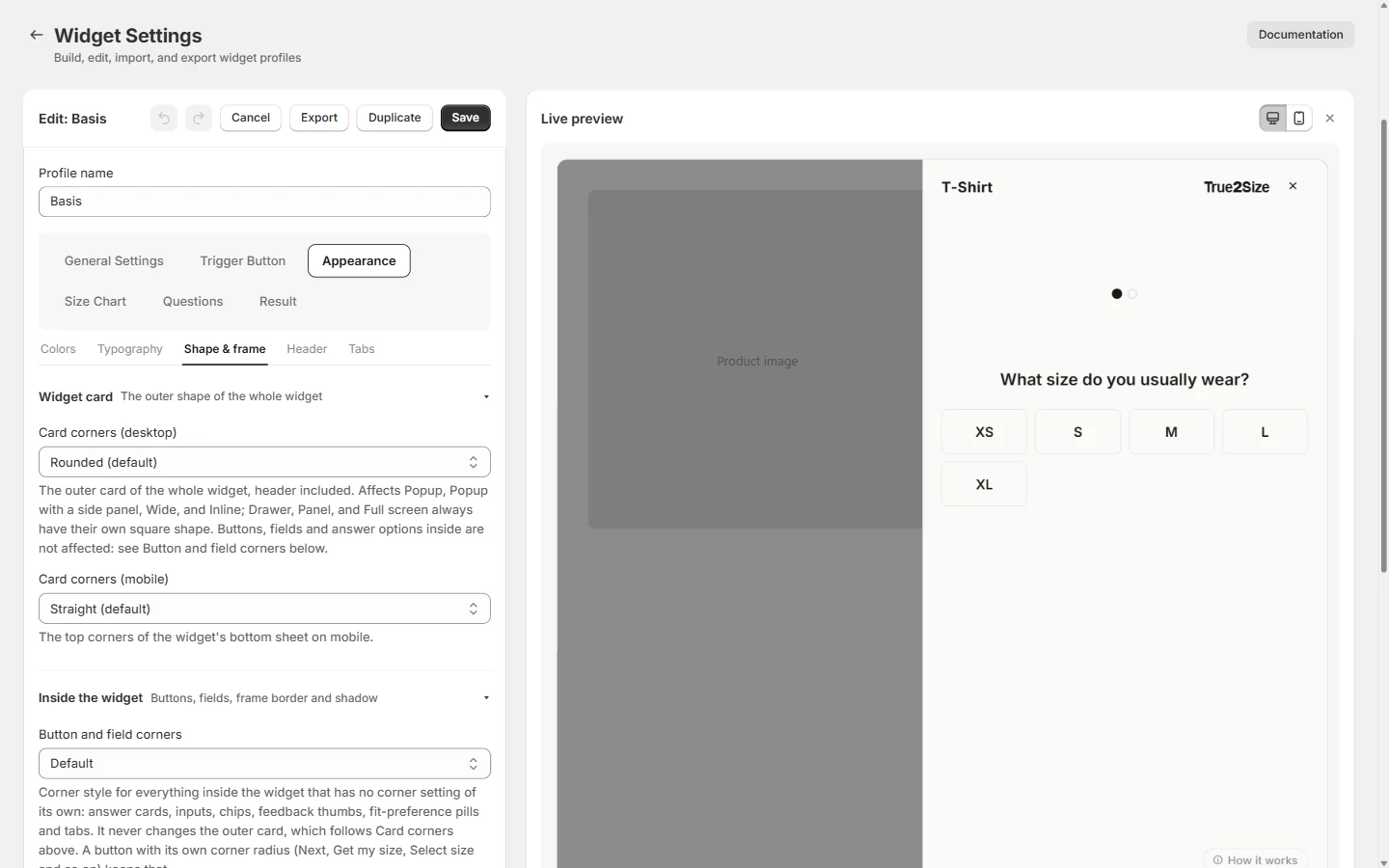
Editing a profile. Six groups of settings on the left, the live preview on the right.
Working with profiles
New profile, Duplicate, Delete
Duplicate is the quickest way to make a variation. The Default profile cannot be deleted.
Import and Export
Save a profile as a file, or bring one in. See Import & export.
Bulk edit
Applies a few common settings (accent color, button color, widget font, trigger button style, result display style, fit feedback, merchant note) to several profiles at once. It is a one-time change, not a link between profiles.
Live preview
The real widget, not a mockup, with a desktop and a mobile view. It jumps to the screen your current tab affects: the button for Trigger Button settings, the result for Result settings, the chart for Size Chart settings. "Preview on size chart" picks which chart to preview with and changes nothing that is saved.
Saving
Changes apply to your store when you press Save. Undo and redo work while you edit, and you are warned before leaving with unsaved changes.
Colors work the same everywhere. Almost every color field offers Default, Primary accent, Secondary accent or Custom. Fields set to an accent follow your two brand colors (see Appearance), so a rebrand is two changes instead of fifty. Custom takes a hex code or the color picker.
Widget settings
General settings
Widget Settings›General Settings
The most consequential choices: what the button opens, how it opens, and which units it starts in.
What it opens
What it opensDefault: Size recommender
Size recommenderThe button opens the questionnaire only.
Size chartThe button opens straight to your size chart, with no questions.
Recommender + size chartThe questionnaire, with the size chart on a second tab.
Separate buttons: chart + recommenderTwo buttons on the product page: one for the size chart, one for the recommender.
Separate buttons: chart + recommender with chart tabTwo buttons, and the recommender also carries the size chart tab.
The two "Separate buttons" options add a Chart button group to the settings, where the second button gets its own position, style and text.
Display
Show widget onDefault: Both mobile and desktop
Asked first. Choose both, mobile only or desktop only, and only the options for those devices are shown below it.
Desktop displayDefault: Panel
PanelA wide strip along the right edge, about two-fifths of the screen, with square corners.
PopupA centered window over the page.
Popup + side panelThe popup with the product photo filling its left half. Uses the product's own featured image.
DrawerA narrow strip along the right edge with rounded left corners.
WideA large centered window. The size chart uses the full width; questions and result stay at a comfortable width in the middle.
Full screenCovers the whole screen, with the content in a centered column.
InlineOpens inside the page where the button sits, with no overlay. A Height setting fixes its size so it does not jump between screens.
Mobile displayDefault: Full page
On a phone every desktop option turns into one of these three.
Full pageFills the whole screen, sliding up from the bottom.
TakeoverA full-screen page that slides in from the side. It closes only with its close button.
RegularA bottom sheet that leaves a small gap at the top and can be swiped down.
What the chart button opensDefault: Panel
Only with a "Separate buttons" option. The size chart button has its own display mode, so the chart can open as a compact panel while the recommender opens as a popup.
Side panel
Shown when Desktop display is Popup + side panel. Every option starts on the look this mode has always had, so nothing changes until you choose otherwise. Desktop only: phones do not show the side panel.
SizeDefault: Standard
StandardThe compact popup, with the image taking a little under half.
LargeA wider, taller popup with the image and the questions half and half.
CustomYour own popup width (640 to 1000px) and image share (30% to 60%). The questions always keep enough room to stay readable.
Image fitDefault: Fitted
FittedA smaller image with space around it.
Fill widthThe image spans the full width of the panel. Nothing is cropped unless the image is taller than the panel.
Fill panelThe image covers the whole panel and is cropped where it does not fit. Best for lifestyle photos.
With Fill width or Fill panel the image runs down to the bottom edge of the popup. For an image from the very top as well, switch off the desktop header under Appearance, Header.
Panel backgroundDefault: Widget background
The color around the image. "Match the image" reads the colors along the image's own top and bottom edges and continues them, so a studio photo blends into the panel. It works best on photos with a plain backdrop. "Custom color" uses a color you pick, which is also the fallback for an image whose colors cannot be read.
Show all product images in the side panelDefault: Off
Lets shoppers browse up to 8 of the product's images with arrows, dots, a swipe or the arrow keys, each with its own matched background. It opens on the photo of the color the shopper selected. Videos and 3D models are skipped, and a product with one image shows no arrows.
Units
Which unit system the height and weight fields and the size chart table start in, before a shopper changes it.
Default measurement unitDefault: Auto-detect
Auto-detectFollows the shopper's browser language: US English starts imperial, everything else metric.
MetricCentimeters and kilograms.
ImperialFeet and inches, pounds.
Set it explicitly if your market does not match its browser language.
Let height and weight use different unit systemsDefault: Off
Normally the two switch together. Turn this on if your shoppers mix systems, such as feet and inches for height with kilograms for weight. Two more settings then appear: a default height unit and a default weight unit.
Widget settings
Trigger button
Widget Settings›Trigger Button
The button a shopper sees on the product page before the widget opens. Three tabs: where it sits, how it looks, and what it says.
Position
Answered in two steps: what kind of button, then where to put it.
Where should the button appear?Default: Inline
InlineNext to your size picker. What most stores want.
FloatingPinned to a corner of the screen, independent of your theme. Works on every theme with no setup.
BothAn inline button and a floating one together.
How should we find your size picker?Default: Auto-detect
For the inline button.
Auto-detectFinds your theme's size picker and places the button beside it. Tuned for Shopify's Dawn-family themes, including Horizon.
Custom CSS selectorYou give the selector of your size options. Works on any theme.
ManualThe button stays where you dragged the True2Size block in the theme editor. Needs the block, not the app embed.
Detection badge
With Auto-detect or a Custom CSS selector, a badge shows whether the size picker was found the last time a shopper loaded a product page: Detected, Not detected, or Not yet checked.
Starting side and fine-tuningDefault: Above, right
Choose above or below the size options and the left or right edge, then nudge the button with the horizontal and vertical position sliders. In Manual mode you get a button alignment (left, center, right) and the same two nudge sliders.
Floating button
Its corner (bottom or top, right or left), its orientation (vertical like a side tab, or horizontal), a gap that slides it along the edge, and an edge offset that pulls it in from the side of the screen.
Mobile positionDefault: follows the settings above
An optional section. Give the button a different side, corner, alignment, nudge or size on phones, without changing desktop.
Style
The inline button and the floating button are styled separately. The floating one can simply follow the inline one.
Trigger button styleDefault: Text link
Text linkUnderlined text that blends into the product page. The underline can be solid or dotted.
Plain textThe same without an underline.
OutlinedA bordered button.
FilledA solid button.
Colors
Text color always, border color for Outlined and Filled, button color for Filled.
Shape and size
Corner radius and horizontal and vertical padding for Outlined and Filled, and one Button size slider that scales the text, icon and padding together.
IconDefault: None
Shown before the label, in the button's text color. Choose from 24 built-in icons (clothes hangers, tape measures, rulers and question marks), upload your own, or use none.
Text style
Button font, font weight, normal or uppercase, and letter spacing.
Text & Notes
Button textDefault: "Find your size"
The default label is translated per language. Your own text is shown as written in every language. With both an inline and a floating button, each has its own text.
Show model noteDefault: On
Shows the model note of the product's size chart next to the button, before the shopper opens anything. The text itself is written on each size chart. "Also show on mobile" hides it on phones only.
Model note position and style
A starting side, horizontal and vertical nudges, an optional separate mobile position, text color and text size. With a floating button, the note stays by the size picker.
Widget settings
Chart button
Widget Settings›Chart Button
This group appears only when "What it opens" is set to one of the two "Separate buttons" options. It configures the second button, the one that opens the size chart, with the same three tabs as the trigger button: Position, Style and Text.
Position
Inline or floating, with the same ways of finding your size picker. It starts above the size options on the left, opposite the trigger button, so the two buttons flank the size picker.
Style and Text
The same style options as the trigger button, and its own label.
How it opens
Set under General Settings, Display, as "What the chart button opens".
Settings you make here are kept if you switch back to a single-button option. They return when you choose "Separate buttons" again.
Widget settings
Appearance
Widget Settings›Appearance
The look of the widget itself. Five tabs: Colors, Typography, Shape & frame, Header and Tabs.
Colors
Accent color (Primary)Default: #1a1a1a
Your main brand color. Any color field set to "Primary accent" follows it.
Secondary accent colorDefault: same as Primary
A second brand color, for stores that use two. Fields set to "Secondary accent" follow it.
Background colorDefault: the widget's own background
The background of the whole widget. Text and selected states adjust on their own to stay readable against it.
Typography
Widget fontDefault: Auto-detect
Auto-detect uses your store's own font and is recommended. Otherwise choose from a list of system fonts and hosted web fonts.
Font overrides
Give one part of the widget its own font: header title, tabs, questions, the Next and Get my size buttons, the "Your size" label, the recommended size, the model note, the merchant note. Each starts on Auto, which follows the widget font. The trigger and chart buttons keep their font with their own Style settings.
Text style
Text size in five steps, Bold, ALL CAPS and a text color, applied to all widget text.
Shape & frame
Two separate things: the outer card of the widget, and what is inside it.
Card corners (desktop)Default: Rounded
Rounded or straight, for the outer card including its header. Applies to Popup, Popup + side panel, Wide and Inline. Drawer, Panel and Full screen always keep their own square shape.
Card corners (mobile)Default: Straight
The top corners of the bottom sheet on phones.
Button and field cornersDefault: Default
None, sharp, soft, rounded or pill, for everything inside the widget without a corner setting of its own: answer cards, inputs, chips and tabs. It never changes the outer card. A button with its own corner radius keeps that.
Selected-answer styleDefault: Default
How a chosen answer looks: a soft color tint, a border only, or a solid fill.
ShadowDefault: Default
None, subtle, soft or strong, around the whole widget.
Border widthDefault: 1px
The width of the widget's outer frame, inputs, cards and the result divider. Zero removes the frame border.
Frame border colorDefault: the standard color
Colors the outer frame. A darker color with a thicker border gives the widget a more closed, framed look. Popup, Wide and Inline always have a frame. Drawer, Panel and the mobile bottom sheet sit against a screen edge and get a frame line once you pick a color.
Header
The bar at the top of the widget. General settings apply everywhere; Desktop and Mobile each have their own layout.
General
Logo image (the True2Size logo or your own), title text (the product title or your own text), title color, bold, letter spacing and the header's background color.
Desktop
Show a header or not, logo and title each on or off, their alignment and size, the header's padding, and the close button: shown or hidden, its style and its color.
Mobile
Title on or off, image on or off, the image source (the product's photo, which is the default, or your logo), alignment, padding and the close button. On Full page and Takeover the close button always stays visible, because it is the only way out.
Tabs
The "Calculator / Size Chart" and "Your Size / Size Chart" tab bar.
Tab styleDefault: Default
Underline, outlined, filled, or filled with a border.
Shape and text
Corner radius, border thickness, alignment, bold and letter spacing.
Colors
Accent color (the underline, border or fill of the active tab), border color and text color.
A size chart's own Collapsible / tabs block can have a different tab look, set in the size chart editor.
Widget settings
Size chart style
Widget Settings›Size Chart
How size chart tables look inside the widget, for every chart that uses this profile. The content of a chart is edited on the Size Charts page; this is only its styling.
Table
Table styleDefault: List
ListThin lines between rows and no outer border.
GridA border around every cell, like a spec sheet.
BandedStriped rows in a rounded card.
Row spacing, cell alignment and text size are set per chart, in the size chart editor.
Highlight row & column on hoverDefault: Off
Highlights the row and column under the shopper's cursor, which makes a wide table easier to read.
Bold the top row & first columnDefault: Off
Makes the size names and measurement names stand out.
Colors
Odd and even row colors, the header row and its text, the first column and its text, the border color, the hover highlight, and the result highlight: the color of the recommended size's row once a shopper has a result.
Text & title
Size chart text
Two colors: one for text inside tables, one for the explanatory text around them.
Table title
How a table's title is shown (a heading, a banner cell or a small label above), with its text and background colors.
Link colorDefault: Text color
The color of links in size chart text. Links are always underlined, so they stay recognizable in the text color too.
Unit toggle
The CM / IN switch above each table.
Style, size and positionDefault: Divider, right
Divider, pill or square; a size slider; left, center or right of the table.
Selected unit color
The color of the active unit. Default is neutral.
Widget settings
Questions
Widget Settings›Questions
What the widget asks before it recommends a size, and how the questions look.
Question flow
Question flowDefault: Pro (new profiles)
FastTwo questions: usual size, and whether that size always fits.
AccurateThree questions: Fast plus fit preference (snug, regular, loose).
ProFour questions: Accurate plus height and weight.
Fewer questions means more shoppers finish. More questions means a better-informed recommendation.
Usual size questionDefault: Regular
RegularA plain "What size do you usually wear?".
ComparisonThe shopper first picks a brand they know their size in, then gives their size in that brand. You choose which brands are offered and drag them into the order shoppers see; shoppers see each brand as its logo, in tiles that follow your answer button style.
Ask genderDefault: Off
An optional extra question at the end of the flow. Useful for your analytics.
Default gender answerDefault: Auto: match the size chart
Pre-selects an answer so most shoppers continue in one tap. Auto follows each chart's "Who is this chart for?": Women's for a women's chart, Men's otherwise. You can also fix it to Men's or Women's, or choose "Ask" for no pre-selection.
Ask age rangeDefault: Off
Another optional question, placed after gender.
Height & weight input styleDefault: Digit boxes
Only with the Pro flow: digit boxes, a slider, a scroll wheel or a dropdown list.
Style
Question text
Bold, ALL CAPS, letter spacing, size and color of each question's heading.
Answer buttons
Style, size, corner radius, border thickness, border color, accent color and text color of the size buttons and answer cards.
Progress barDefault: Dots
Dots (one per question), a continuous line with a thickness setting, or segments. One color setting.
Next and Get my size buttons
A shared typography section (font weight, uppercase, letter spacing), then style, button color, text color and corner radius for each button.
Advanced spacing
Vertical spacing of the questionnaire, separately for desktop and mobile. Each display mode starts on sensible values; change these only to fine-tune.
Widget settings
Result
Widget Settings›Result
The screen with the recommendation. Five tabs: Layout, Text, Notes, Buttons and Variants.
Layout
Result layoutDefault: Normal
NormalThe size plus a bar that shows how it fits.
MinimalisticJust the size, with the product image when there is one.
Result display styleDefault: Confidence bars
For the Normal layout.
Confidence barsA match percentage per size.
Minimal barsThicker bars without percentages.
Fit barOne bar from tight to loose, with a pointer.
Bar colorDefault: Green
Green, neutral, or your accent color.
Ask for fit feedback after the resultDefault: Off
Adds a short "How did it fit?" prompt.
Size hero
How the size itself is composed: the label and size on one line, or stacked under the product image. With the stacked composition you also set the image height, the button width and the gaps between the parts.
Text
Size text
Font size, color, bold and letter spacing for the "Your size" label and for the recommended size.
Confidence display
For the Normal layout: the style and color of the confidence badge ("High confidence"), and whether the explanatory sentence under it is shown.
Notes
Default merchant noteDefault: empty
A short line under the recommended size, for example "Our shirts run slim, so size up if between sizes." It is used for every chart on this profile, unless a chart sets its own note. Text color and text size are set here for both.
Restored answers noteDefault: Plain text
The "Your saved size" line a returning shopper sees above the result. Plain text or boxed.
Buttons
Select size button
Select sizeSelects the recommended size in your product page's own size picker. The default.
Add to cartSelects the size and presses your page's own add-to-cart button, so your theme and other apps behave as usual.
Plus style, colors, corner radius, text size, letter spacing, Bold and UPPERCASE.
Save my size button
The button that starts saving a profile. After saving it reads "Manage my size". Style, colors, corner radius, text size, Bold and UPPERCASE.
Redo quiz button
Lets the shopper answer again. It follows the tertiary style unless you override it here.
Tertiary buttons
The quiet actions as one group: Redo quiz, Change, Cancel, Skip for now, Delete details. Style, colors, corner radius, Bold and UPPERCASE (Redo quiz follows these too).
Variants
Variant optionsDefault: Off
For products that come in more than a size: color, fabric, length or any other option you set up in Shopify. Switched on, the result shows those options under the recommended size, and the Select size button selects (or adds to the cart) exactly the variant the shopper picked. It starts on what they had selected on the product page, and picking a value with its own photo also switches the side panel photo. With two or more options, each row shows what can be bought with the choice in the row above it.
Options to showLeave empty to show every option except the size. To show only some, type their names as they are in Shopify, separated by commas, for example "Color, Fabric". Options you leave out keep the value selected on the product page.
Shown asAutomatic, swatches, text chips or a dropdown. Automatic uses swatches when every value has a color or a photo (your Shopify swatches, the variant's own photo, or a plain color name), text chips otherwise, and a dropdown above 12 values.
Sold outValues that are sold out in the recommended size are shown crossed out, or hidden.
Minimalistic layoutThe options are shown without their name line. A checkbox leaves them out there entirely.
Switched off, the button only changes the size and leaves the rest of the page's selection as it is. Colors that are sold as separate products are not variants, so they are not offered.
Sold-out noteDefault: Always on
The result always checks whether the recommended size can be bought, for every product, including products with only a size. There is no setting for it.
Sold out in the selected variant onlyIf the size is sold out in, say, the color on the product page but available in another, the result says so ("Size M is sold out in Black") and offers the options that are in stock, starting on one that can be bought. This happens even when Variant options is switched off.
Sold out everywhereThe result says "Size M is sold out". With the button on Add to cart it is disabled. With the button on Select size it stays usable, so the shopper still lands on that size on your page, where a back-in-stock app can take over.
Your store
Translation
Translation
One page for your whole store, not a setting per profile. Six languages are available: English, Dutch, German, French, Spanish and Italian.
Store languages
LanguagesDefault: English
Tick the languages your widget should offer. With more than one, shoppers get a language picker inside the widget, and the widget opens in their browser's language when it is one of yours.
Default languageDefault: English
The language you write your own text in, and the fallback for shoppers whose language you do not offer.
What gets translated
The widget's own text
Questions, buttons, the result explanation and every other built-in text are translated into all six languages. Free for every store.
Your own text (Pro)
Text you write yourself is translated automatically into your enabled languages: size chart headings, text blocks, captions, table titles and labels, the model note and the merchant note. Without Pro, shoppers see this text as you wrote it.
Your own text is translated when you save the chart or profile it belongs to. After enabling a new language, open each chart and save it once to add that language. Text you have not changed is not translated again.
Your store
Import & export
Widget Settings or Size Charts›Export / Import
Every widget profile and every size chart can be saved as a small file and brought in again, in the same store or another one. Use it to keep a backup, to copy a setup between stores, or to receive a ready-made setup from us or from an agency.
How it works
Export
The Export button on a profile or a chart downloads one .json file, named after it: Freet-Barefoot-Widget-Profile.json for a profile called Freet Barefoot, Freet-Barefoot-Adults-Size-Chart.json for a chart.
Import
The Import button on the Widget Settings page takes profile files; the one on the Size Charts page takes chart files. A file brought to the wrong page is refused with a message telling you where it belongs. If the name is already taken, the import is added as "Name (2)".
Order
Import profiles first, then charts. A chart file remembers the name of the profile it used, and attaches itself to a profile with that name when it finds one. Otherwise it uses your Default profile.
Files from another version
If a profile file holds a setting your version of the app cannot accept, that one setting is skipped and named in a notice. Everything else is imported.
What a file does not contain
Product mapping
Which products use a chart is specific to each store. Map them after importing.
Store languages
Set on the Translation page of each store.
Translations
Translated copies of your text are not carried over. They are created again when the imported chart or profile is saved, on the Pro plan.
Images
Uploaded images (a logo, a custom icon, chart images) are kept as links to where they were uploaded. They display, but they are not copied into the other store's files.
A Custom CSS selector for the button's position belongs to one theme. After importing a profile into a store with a different theme, check the Position tab.
Your store
Analytics
Analytics
How shoppers use the widget on your store.
Totals
Recommendations in total, this week and this month, and the number of shoppers who saved a profile.
Date rangeDefault: Last 30 days
Last 30 days, 3 months or 6 months. It applies to the funnel, the trend and the size distribution below.
Shopper funnel
Three steps with the share that continued at each: clicked "Find your size", completed the questions and got a size, then selected a size or added to cart.
Trend
Recommendations per day over the chosen range.
Where shoppers give up
Shown when shoppers left before finishing: which question they stopped at. A question that loses many shoppers is a reason to try a shorter question flow.
Size distribution
How often each size was recommended.
Customer Data
A link at the bottom of the page opens the list of shoppers who saved their size on your store: email, usual size and the date.
The funnel describes behavior; it is not a controlled test. Shoppers who open the widget differ from those who do not, so read a difference between them as a signal, not proof.
Your store
Plans & billing
Billing
True2Size is free. The recommender, size charts, product mapping, automatic mapping, every widget setting, the widget's built-in translations and analytics are all included at no cost, with no limit on products or recommendations.
Pro
One paid plan, billed through Shopify, with a 14-day free trial. It adds two features that use paid AI services on our side.
AI translation of your own text
Your size chart text and notes are translated into the languages you enabled. See Translation.
Size chart from a photo
Upload a photo or screenshot of an existing size chart and have its table read out for you. See Size charts.
You upgrade and cancel on the Billing page. After cancelling, translations that were already made stay in place; new text is simply no longer translated.
Your store
Support
Support
Three forms inside the app: a general message, a bug report (with steps to reproduce and a severity) and a feature request. We usually reply within one business day. You can also write to support@true-2-size.com.
Reference
Integration key
Every store has one integration key. The widget uses it to fetch your settings and size charts. It is filled in automatically when you switch True2Size on in your theme, so you never paste it yourself. The True2Size block has an optional key field; leave it empty unless we ask you to fill it in.
Treat the key as private. With it, someone could read your widget configuration or send recommendation events in your store's name. If you think it has been exposed, contact us and we will issue a new one.
Reference
FAQ
Common problems and what to check first.
The "Find your size" button does not show on a product page.
Check four things, in this order. (1) The product is mapped to a size chart on the Products page: a product without a chart, or one marked "Doesn't need a size chart", deliberately shows no button. (2) True2Size is switched on in your theme, either the app embed or the True2Size block. (3) "Show widget on" under Widget Settings, General Settings, Display is not limited to a device you are not testing on. (4) If the button uses Auto-detect or a Custom CSS selector, look at the detection badge on the Position tab: "Not detected" means your theme's size picker was not found.
Auto-detect placement isn't finding my size picker.
Auto-detect is a best-effort match tuned for Shopify's Dawn-family themes (including Horizon), not a guarantee for every theme. If yours isn't recognized, switch to Custom CSS selector: right-click your size options on the live page, choose Inspect, right-click the highlighted element, then Copy, Copy selector, and paste that into Widget Settings, Trigger Button, Position. Floating is the option that works on every theme with no setup.
I changed a setting, but the storefront still looks the old way.
Settings apply as soon as you save and never need a theme redeploy, so first confirm you pressed Save and that you edited the right profile. A product uses the profile its size chart is mapped to; editing "Default" does nothing for a chart mapped to another profile. Then hard-refresh the product page, since the browser can briefly cache the widget.
A setting I am looking for is not where it used to be.
Widget Settings was reorganised into six groups: General Settings, Trigger Button, Appearance, Size Chart, Questions and Result. No setting was removed in that change and every saved value was kept. Units moved to General Settings, corners/border/shadow to Appearance, Shape & frame, all font pickers to Appearance, Typography, the merchant note to Result, Notes, and the model note's text to each size chart.
The model note does not show.
Two switches both have to be on. The text lives on the size chart (Size Charts, open the chart, Notes, "This chart has a model note"), and showing it is a profile setting (Widget Settings, Trigger Button, Text & Notes, "Show model note"). A chart without a note shows nothing, even when the profile has the note switched on.
The size chart tab isn't showing inside the widget.
Set "What it opens" (Widget Settings, General Settings) to "Size chart" or "Recommender + size chart". If it is already set and the chart is still missing, check that the chart's sections are not hidden: each section in the size chart editor has its own "Hide from storefront" switch.
The Products page is empty even though I have products in my store.
Products you create after installing appear on their own. Your existing catalogue is brought in automatically in the background the first time you open the Products page; on a large store that can take a moment. You can also add specific products at any time with "Add products".
My pasted or imported table put sizes where measurements should be.
That is the orientation guess at the first step of the import wizard. If your sizes run across the top instead of down the side, switch the orientation there. The preview underneath updates immediately, so you can confirm it before moving on.
The import wizard says a value could not be read.
The review step names the exact row and column, for example a stray "N/A" or a unit symbol mixed into a number. Fix that cell in your source and import again. Nothing is applied until every mapped cell is readable.
My size chart is not translated.
The widget's own text (questions, buttons, the result explanation) is translated for every store. Text you write yourself is translated on the Pro plan only, into the languages you enabled on the Translation page, and only when that chart or profile is saved. After enabling a new language, open the chart and save it once.
Can a shopper's size follow them when they come back later?
Yes. Within the same visit, the widget remembers their answers, so the next product shows their size straight away. For later visits, a shopper can press "Save my size", enter their email address and a one-time code, and tick the consent box. The same store then recognises them on return and skips the questions.
Can I copy my setup to another store?
Yes. Export each widget profile and each size chart as a file and import them in the other store, profiles first. See Import & export above for what the files do and do not contain.
 Questions
 Result
 Size chart